
Transfer Your Music Distribution to Dibsteur
How to switch distributors while preserving ISRC codes, release dates and release continuity across music platforms.
By Dibsteur Published March 7, 2025 Updated August 12, 2026
A distribution transfer means delivering an already released project through Dibsteur, then asking the previous distributor to remove its delivery once the new version has been matched correctly by the platforms. The sequence matters: do not take down the previous version before the Dibsteur delivery is live.
1. Gather the Existing Release Information
Prepare the original audio file, cover artwork, exact title, artist name, original release date, credits and territories. Reuse the ISRC assigned to each recording. This code identifies the recording and helps platforms connect the new delivery with the version that is already available.
- Use the same audio file, with no new master or duration change.
- Keep the same title, version, primary artists and explicit designation.
- Keep the original release date.
- Record the release UPC or EAN, even if the new delivery receives another release identifier.
Spotify documents stream continuity during a distributor change in its official help centre: switching distributors on Spotify for Artists.
2. Import the Release into Dibsteur
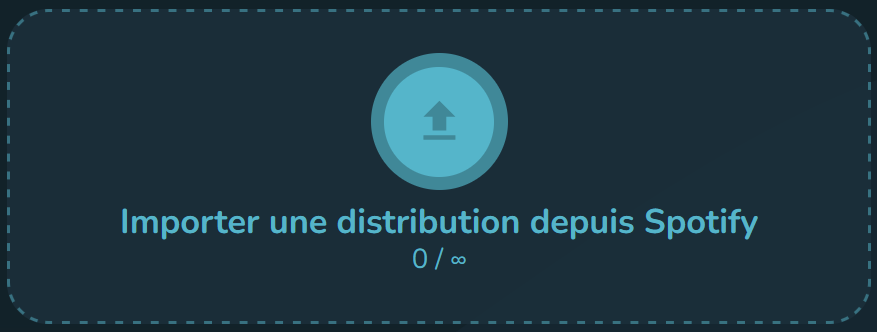
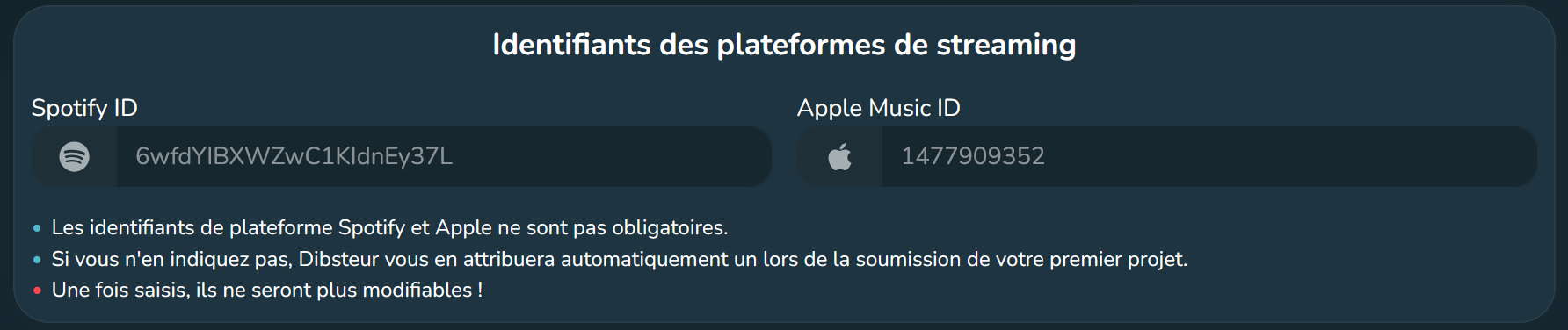
Connect your platform profiles in Dibsteur, open the distribution area and choose the option to import an existing release. Select the correct project, then review the imported information before moving on.
3. Check Metadata and Files
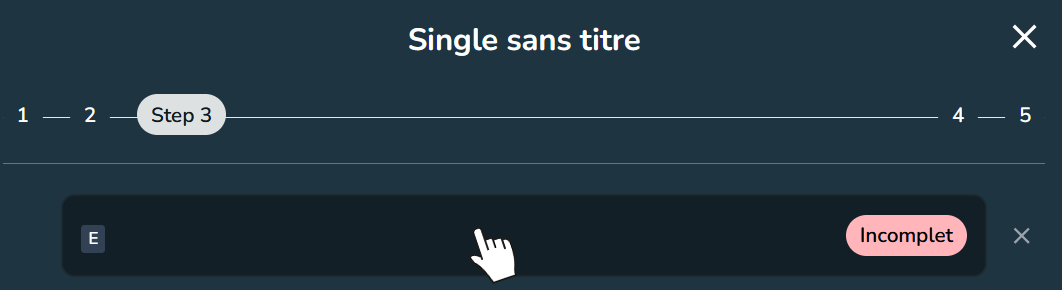
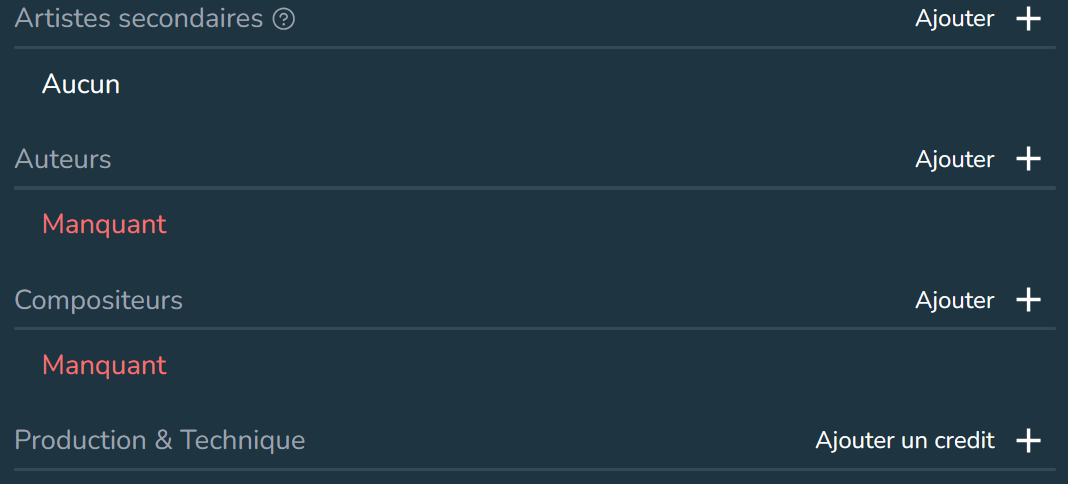
Compare every field with the live version. A difference in the artist name, title, version, explicit designation, duration or ISRC may prevent automatic matching. Check the cover, language, genre, songwriters, composers and other contributors as well.
4. Set the Date and Submit the New Delivery
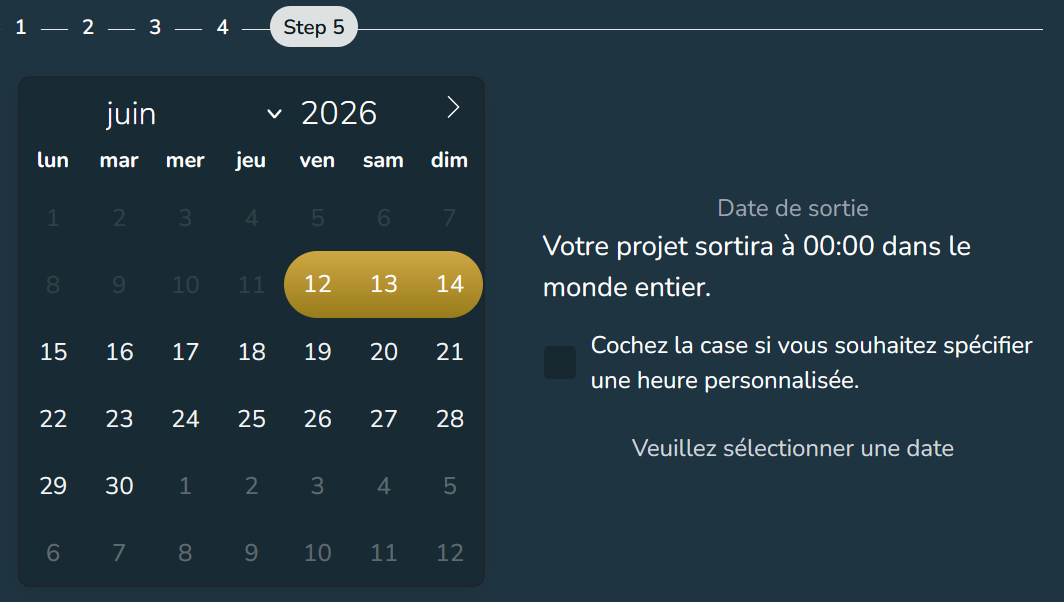
Enter the original release date in the metadata and allow enough lead time for platform review. Processing times vary by service and season. Dibsteur delivers the project after all required information has been validated.
5. Check the New Delivery Before Takedown
Wait until the new delivery appears on the correct artist profiles. Check links, artwork, titles, credits and, where a platform shows them, stream-count continuity. If a platform creates a duplicate or places the release on the wrong profile, contact support before removing the old delivery.
6. Request Takedown from the Previous Distributor
Once the new delivery is available and verified, ask the previous distributor to take down its version. A short overlap is normal during a transfer. The goal is to avoid a period in which no version is available.
After the Transfer
- Keep a copy of the metadata and identifiers used.
- Check the main streaming services, not Spotify alone.
- Monitor artist profiles and editorial links for a few days.
- Keep the previous distributor’s statements for revenue earned before the transfer.
If you are preparing a first release with no previous delivery, read Distribute Your Music with Dibsteur. For an overview of Spotify distribution, timing and plans, see How to Get Your Music on Spotify.