What format should you use for a Spotify Canvas?
You should plan your Spotify Canvas format from the start of the project to avoid having to crop or re-export your visual when you upload it.
| Feature | Specification provided by Spotify |
|---|
| Video length | 3 to 8 seconds |
| Orientation | Vertical |
| Aspect ratio | 9:16 |
| Height | Between 720 and 1,080 pixels |
| Accepted files | MP4 or JPG |
These dimensions reflect the official guidelines consulted on October 23, 2026, with the stated range referring specifically to the file's height: a 1,080 × 1,920-pixel video therefore exceeds this guideline, whereas a 576 × 1,024-pixel export, for example, mathematically meets the 9:16 aspect ratio and the required height range. MP4 is suitable for animation, while JPG lets you provide a still image.
How do you create a Spotify Canvas?
To create a Spotify Canvas, start by deciding what you want listeners to feel. A calm image, energetic movement, and an abstract animation do not convey the same thing, even when they use the same colors, so it helps to build the visual around the track and your art direction before choosing effects or editing software.
Find an idea that works in a few seconds
You can design your Canvas around an element already associated with the project, such as the setting of a music video or a detail from your album cover, with the aim of giving it interesting movement without needing a lengthy introduction.
A few creative starting points:
- Animate an illustration by making a character, texture, or light source move.
- Film a simple gesture, such as a hand brushing against an instrument or a piece of clothing lifting in the wind.
- Work with a setting, using a reflection, shadow, or camera movement.
- Create a graphic animation around a shape or motif associated with the release.
A good starting point is to choose just one of these ideas and view it in a phone format. If you have to explain what the viewer is supposed to see, simplify the composition before adding other elements.
Pay attention to movement and the loop transition
A video loop should remain pleasant when it starts over, which means paying particular attention, while editing the Canvas, to the transition between the last and first frames. An abrupt change in position or lighting can look like a mistake, even if each shot works on its own.
To check this transition, play your sequence several times without interruption. You can aim for subtle continuity or embrace a sharp cut if it is part of the intended effect; what matters is that the repetition is intentional.
Also avoid building the entire video around lip movements that are supposed to follow the lyrics. Spotify recommends limiting singing or talking shots, intense flashes, and overly fast editing, while keeping important elements away from edges that may be cropped on some phones.
Export the Canvas
Export your Canvas as an MP4, then check the dimensions and length of the resulting file instead of relying only on the project settings. Keep your editing project file so you can adjust the framing or replace a sequence without starting the entire creation process over.
Add a Canvas in Spotify for Artists
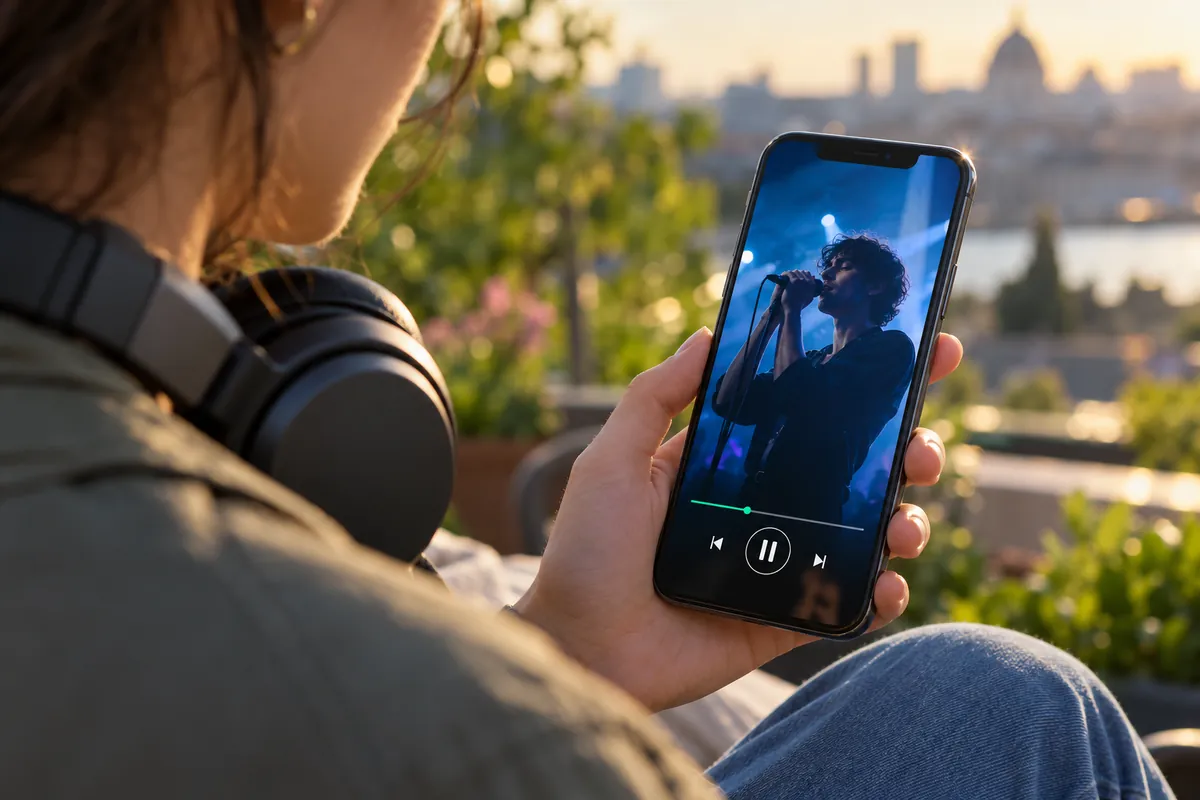
Adding a Canvas requires an Admin or Editor role in Spotify for Artists, as well as meeting Spotify's stated credit requirements: being the first main artist on the track, or a main artist listed on both the track and the release.
The track must have been delivered to the platform before this step. If you are preparing your first release, you can distribute your music on Spotify with Dibsteur, then manage the Canvas in your Spotify for Artists account.
| From the Spotify for Artists website | From the Spotify for Artists app |
|---|
| Log in to Spotify for Artists. | Open the Spotify for Artists app. |
| Open Music and select your track. | Open Music and choose the track. |
| Click Add Canvas, then upload your file. | Tap the Canvas option to add your visual. |
You can also add a Canvas to an upcoming release once it is accessible in Spotify for Artists, without waiting for the track to be available to listen to.
What your Canvas can contain
Canvas is intended to accompany the track with a visual creation that may include text if it relates to the track and supports the image, without turning the animation into an advertisement.
Spotify's guidelines specifically ask you to avoid:
- URLs and redirects to websites or ticketing services;
- requests for follows or likes on social media;
- promotion of products, discounts, or contests;
- announcements for tracks or albums unrelated to the track;
- promotional branding elements, including the Spotify logo.
A Canvas containing explicit material must also be marked as such, particularly when it includes sexual, violent, or drug-related references.
Why is my Spotify Canvas not showing?
The file is rejected during upload
If your Spotify Canvas will not upload, first check the format, aspect ratio, height, and exact length of the exported file, since Spotify says that even slightly exceeding the specifications can cause the upload to fail. If these are correct, try the Spotify for Artists mobile app; support also recommends reinstalling it to get the latest version, then contacting them if the error persists.
Enable Spotify Canvas to display animations
To enable Spotify Canvas as a listener, open the mobile app, then:
- Tap your avatar and open Settings and privacy.
- Turn off Data Saver in the section for data saving and offline mode.
- Go to Content and display, then turn on Canvas.
To turn off the animations, return to the same Canvas setting. Section names may vary depending on the app's language.
Check the track version
If the Canvas is still missing despite the settings, make sure you are using the Spotify mobile app and listening to the version of the track to which the visual was added. Several versions of a track may coexist, and when rights are split, a label can add a Canvas only to the versions it owns.
Share a track with its Canvas
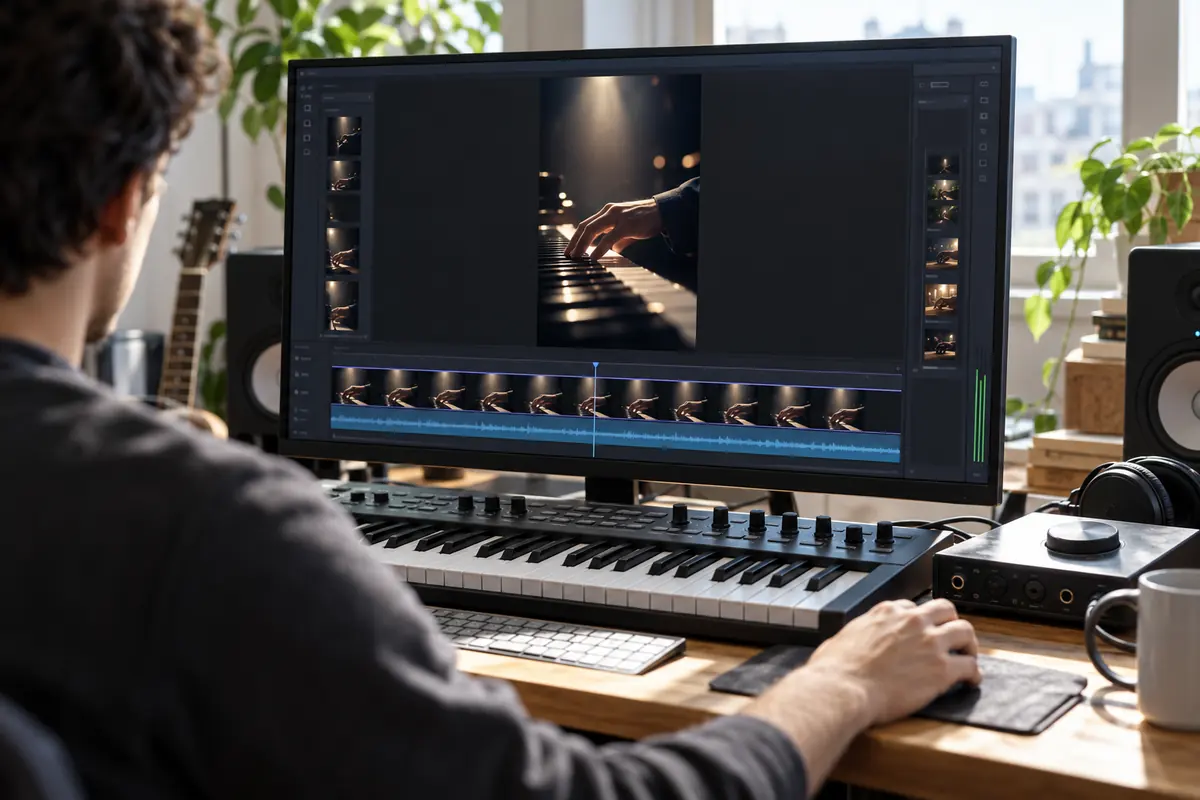
Canvas can extend a track's visual identity when it is shared to Instagram Stories: when a listener shares the track from Spotify, the animation may appear in the background with the track information and a link to listen. You can take this into account when preparing visuals to promote your music on Spotify, keeping the Canvas consistent with the other posts for the release.